Re-process Version
This is not an operation you should ever need to do. But if you do, here is what you need to know.
Why would I want to do re-process?
Section titled “Why would I want to do re-process?”- If you hover over the (i) icon next to the asset name, and it says “re-process.”

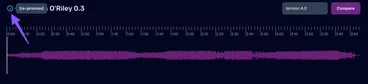
- If you uploaded the asset before November 18, 2024, and wanted to use the new streaming engine.
Will this change or alter my audio in any way?
Section titled “Will this change or alter my audio in any way?”No! We always keep your original audio file safe. Re-processing helps us make sure everything is optimized behind the scenes. Aliada handles versions seamlessly regardless of which streaming engine it was processed for.
Steps to re-process
Section titled “Steps to re-process”If you need to re-process a version of an asset, follow these steps:
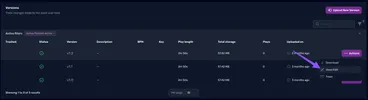
- Find the version you want to re-process and click on Edit.
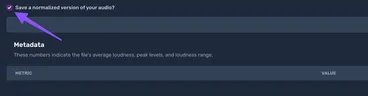
- Check the box that says, “Save a normalized version of your audio?”
- Click the Update button to save your changes.
- Go back to the same version and click Edit again.
- Uncheck the box for “Save a normalized version of your audio?” (this will bring back your original setting).
- Click the Update button to save again.
- That’s it!